

It’s no secret I’m a fan of Google Fonts, but I’m also an huge advocate of Typekit Fonts as well. I love the variety of fonts that Google offers, and they are free to use, but once in a while I want to take my website to a higher level.
If you’re wondering how to add Typekit Fonts into your Genesis website, I’ve got good news for you. It’s quite simple, and I’m going to show you below.
Adding Typekit Fonts
If you are using any of our StudioPress themes, you’ll need to remove the code that loads Google Fonts first. There’s no reason to keep it in, especially since it would add an additional http request on your site load.
Using Monochrome Pro as an example, you’ll see this in the functions file:
[gist id=57024e76f2bd9687ef7fd4f75e63df5d file=functions.php]
You’ll want to remove the following line of code from that function:
[gist id=7f4c181e1a7d7ad29a249a96762c079f file=functions.php]
The next step in adding Typekit Fonts to your Genesis website is to create a kit through your Typekit account. After you have done that, you should be provided with an Embed Code that looks something like this:
[gist id=da94b95fe92ddad984b8ba54f9982243 file=sample.js]
You’ll need to copy that code and place it into the Header Scripts option box on the Genesis > Theme Settings page in your WordPress dashboard.
Here’s an screenshot that shows you where to place the code:
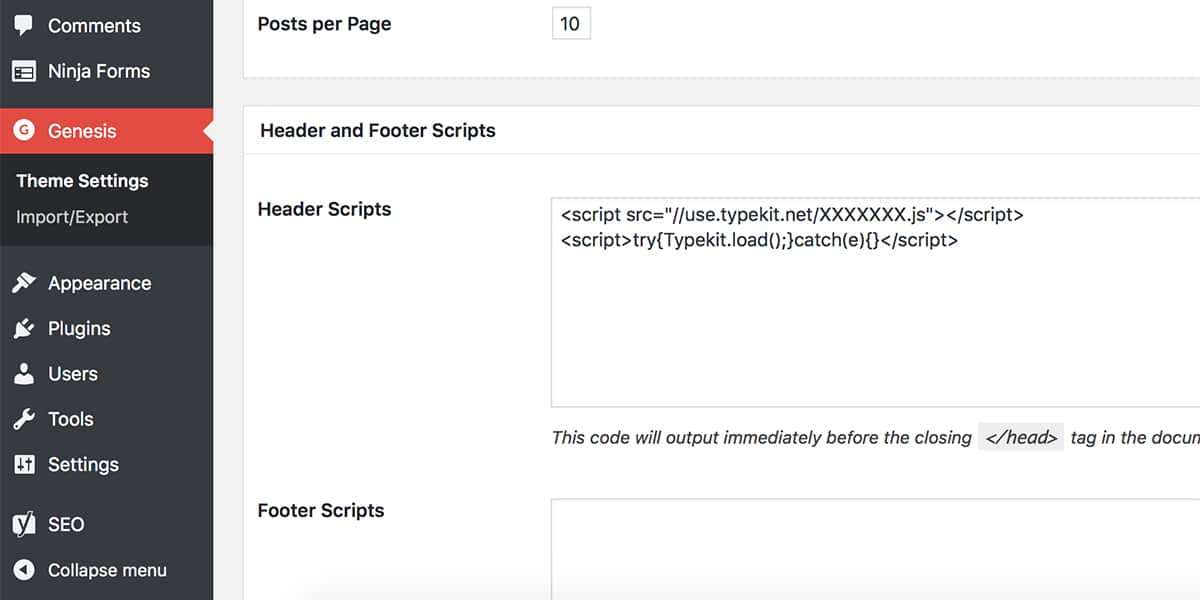
The last thing you need to do is update the CSS in your style sheet. You’ll want to do a search and replace, as this will ensure you replace all instances.
For example, you’ll notice that our Monochrome Pro theme uses the Muli font from Google, as shown in the CSS below:
[gist id=51e38effcf668ea0970222aaa642ed91 file=style.css]
Simply replace the font-family with your Typekit Fonts, as shown below:
[gist id=9253e7930bd81502eae019ab74ecb81c file=style.css]
Update from Typekit: Serve web fonts without JavaScript (and with CSS)
We have published additional Genesis Quick Tips for you, so feel free to use what you see to build something awesome.